How Do Cloud Platforms Handle Black Friday Traffic?
Learn how Kubernetes HPA handles traffic spikes, cold starts, scaling flaps, and database connection limits during production load surges.
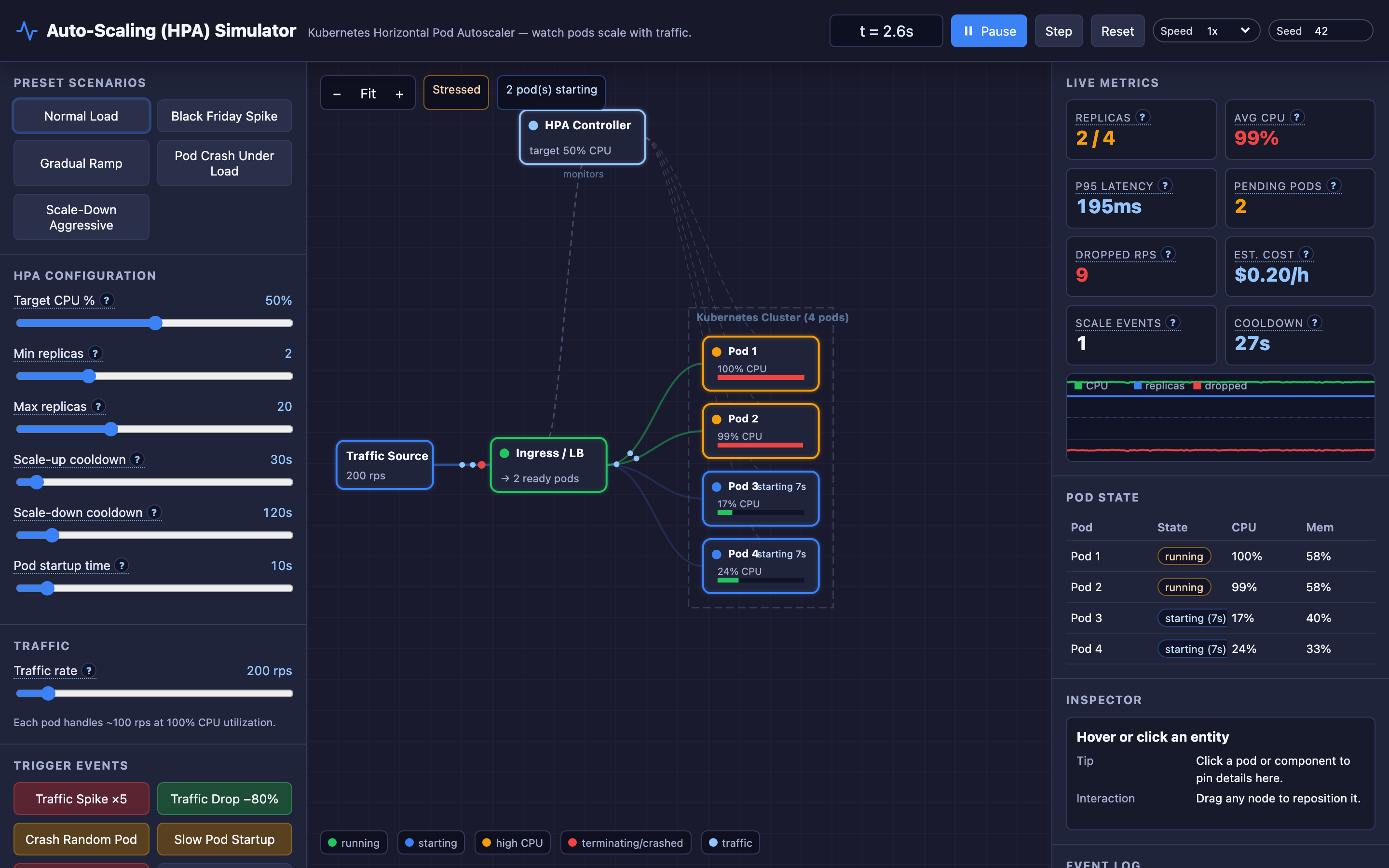
Why this matters
At 6:00 AM on Black Friday, your e-commerce platform is humming along at 200 requests per second across 3 pods. By 6:01 AM, a flash sale link hits Twitter and traffic rockets to 1,800 rps. Your pods peg at 95% CPU.
Requests start dropping. The Horizontal Pod Autoscaler notices — but the cooldown timer hasn’t expired yet. For 30 agonizing seconds, customers see 502 errors.
This is the core tension of auto-scaling: react too fast and you get scaling flapping — pods thrashing up and down every few seconds, burning money and destabilizing your cluster. React too slow and you shed traffic during the most revenue-critical minutes of the year.
Kubernetes HPA is the industry standard for horizontal scaling, but its default settings are designed for stability, not speed. Understanding the formula it uses, the cooldowns that gate its decisions, and the pod lifecycle delays that separate “desired” from “actual” replicas is the difference between a smooth Black Friday and a postmortem.
My rule of thumb Autoscaling is capacity planning with a delay, not magic elasticity. I care as much about startup time and connection budgets as I do about the HPA formula.
The mental model
HPA runs a control loop every 15 seconds (by default) that calculates the desired number of replicas using a simple formula:
desiredReplicas = ceil(currentReplicas × (currentCPU / targetCPU))If you have 3 pods averaging 85% CPU and your target is 50%, HPA computes ceil(3 × 85/50) = ceil(5.1) = 6. It wants 6 pods. But it won’t act immediately — it checks whether the scale-up cooldown has expired since the last scaling event.
Once HPA decides to scale up, Kubernetes creates new pods. These pods don’t serve traffic instantly. They go through a lifecycle: Pending → ContainerCreating → Running (but not Ready) → Ready. Only Ready pods receive traffic from the Service.
If your container image is 800MB and your init containers run database migrations, that startup time might be 30–60 seconds. During this window, your existing pods are still overloaded. The traffic is distributed round-robin across Running pods only, and each pod can handle approximately 100 rps at 100% CPU. If a pod’s CPU exceeds 95%, excess requests are dropped entirely.
Scale-down is even more conservative. HPA uses a stabilization window — it looks at the highest desired replica count over the entire window period before scaling down. This prevents the autoscaler from prematurely removing pods after a brief traffic dip, only to need them again seconds later.
Decisions that matter
Target CPU % (10–90%): The utilization HPA aims to maintain. Setting this to 50% means HPA tries to keep every pod at half capacity — leaving room for traffic spikes. At 80%, you’re running leaner but one spike could push pods past the drop threshold before new replicas come online.
Scale-Up Cooldown (15–300 seconds): Minimum time between consecutive scale-up decisions. At 15s, HPA reacts fast but risks oscillation if traffic is bursty. At 300s, you’re protected from thrashing but severely delayed during genuine ramp-ups. Production sweet spot is typically 60–90 seconds.
Scale-Down Cooldown / Stabilization Window (60–600 seconds): How long HPA waits before removing pods after load drops. The default in Kubernetes is 300 seconds. Aggressive values like 60s save money faster but risk removing capacity you’ll need again in 2 minutes.
Pod Startup Time (5–60 seconds): How long new pods take to become Ready. This is a function of your container image size, init containers, JVM warmup, database connection establishment, and readiness probe configuration. Every second here is a second your existing pods are absorbing the overload.
Min/Max Replicas (1–5 / 5–50): The floor and ceiling. minReplicas should cover your baseline traffic plus some headroom. maxReplicas caps your cloud spend — at 60/day.
Where it breaks: Scaling Flapping (Thrashing)
The failure mode: Your scale-up cooldown is 15 seconds and scale-down cooldown is 60 seconds. Traffic oscillates between 400 and 600 rps every 45 seconds. HPA scales from 4 to 6 pods, then traffic dips, and 70 seconds later it scales back to 4.
Traffic rises again, and HPA scales back to 6. Pods are constantly starting and terminating.
What you will notice: In Prometheus, you’ll see kube_horizontalpodautoscaler_status_desired_replicas oscillating rapidly. Pod churn shows up as high kube_pod_container_status_restarts_total.
Grafana dashboards will show a sawtooth pattern in replica count. Your cluster node autoscaler may also thrash, adding and removing nodes every few minutes — visible in kube_node_status_condition.
Hint The interactive demo’s “Scaling Flapping” preset demonstrates this scenario. Try setting the scale-up cooldown to
15sand scale-down cooldown to60sto reproduce the sawtooth pattern.
What I would do:
# Increase stabilization window to prevent premature scale-down
apiVersion: autoscaling/v2
kind: HorizontalPodAutoscaler
spec:
  behavior:
    scaleDown:
      stabilizationWindowSeconds: 300
      policies:
        - type: Percent
          value: 10
          periodSeconds: 60
    scaleUp:
      stabilizationWindowSeconds: 0
      policies:
        - type: Pods
          value: 4
          periodSeconds: 60
Set the scale-down stabilizationWindowSeconds to at least 300 seconds. Use percentage-based scale-down policies (remove at most 10% of pods per minute) to prevent cliff-edge capacity drops. Keep scale-up aggressive but rate-limited.
Where it breaks: Database Connection Exhaustion During Scale-Up
The failure mode: HPA scales from 5 to 20 pods in response to a traffic spike. Each pod opens 10 database connections in its connection pool during startup. Your PostgreSQL instance has max_connections = 100.
The 15 new pods try to open 150 connections simultaneously — 50 of them fail. Pods crash-loop with FATAL: too many connections for role "app" errors.
What you will notice: Pods show CrashLoopBackOff status in kubectl get pods. Application logs show connection refused or too-many-connections errors.
The pg_stat_activity view in PostgreSQL shows connections at the limit. Ironically, the crash-loops cause HPA to see fewer Ready pods and even higher CPU, triggering more scale-up attempts that also fail.
Warning Always pre-calculate your max connections budget before setting
maxReplicas. Formula:max_connections >= maxReplicas × connectionsPerPod + overhead.
What I would do: Deploy PgBouncer or a similar connection pooler as a sidecar or separate service. Set each pod’s pool to 2–3 connections max, and let PgBouncer multiplex them to PostgreSQL.
# Pod spec with PgBouncer sidecar
containers:
  - name: app
    env:
      - name: DATABASE_URL
        value: "postgresql://localhost:6432/mydb"  # PgBouncer
      - name: DB_POOL_SIZE
        value: "3"
  - name: pgbouncer
    image: pgbouncer/pgbouncer:1.21.0
    ports:
      - containerPort: 6432
Where it breaks: Cold Start Delays Causing Request Drops
The failure mode: Traffic spikes 5× from 200 to 1,000 rps. HPA immediately calculates it needs 10 pods (up from 2). But pod startup time is 45 seconds — the application pulls a 1.2GB container image, runs Flyway migrations, and warms its JIT cache.
During those 45 seconds, the 2 existing pods are handling 500 rps each at 100% CPU. At 95%+ CPU, requests are dropped. You lose approximately 2,000 requests before the new pods are Ready.
What you will notice: Prometheus shows container_cpu_usage_seconds_total pegged at limits. The kube_pod_status_phase{phase="Pending"} metric shows pods stuck in Pending.
Application-level metrics show elevated 5xx rates and p99 latency spiking from 50ms to 8,000ms+ (timeout). Client-side, users see loading spinners and timeout errors.
What I would do: Use warm pools — maintain pre-initialized pods at a low resource profile that can be activated quickly. In Kubernetes, this means using a combination of minReplicas set higher than your strict baseline and PodDisruptionBudgets to prevent scaling below a safe threshold:
apiVersion: policy/v1
kind: PodDisruptionBudget
metadata:
  name: app-pdb
spec:
  minAvailable: 3
  selector:
    matchLabels:
      app: web-frontend
Additionally, optimize your container startup: use distroless base images, pre-pull images to nodes with DaemonSet warmers, move database migrations out of pod startup, and configure aggressive readiness probes (check every 2 seconds instead of 10).
Hint Try the interactive demo’s “Cold Start” preset to see request drops during pod initialization. Experiment with higher
minReplicasto reduce the cold start penalty.
The tradeoff
| Approach | Pros | Cons |
|---|---|---|
| Low target CPU (30%) | Headroom absorbs spikes, fewer drops | 2–3× higher pod count at baseline, ~0.05/hour |
| High target CPU (80%) | Cost efficient at steady state | No burst capacity, cold starts cause drops during spikes |
| Aggressive scale-up cooldown (15s) | Fast reaction to genuine traffic ramps | Flapping risk with bursty traffic, node autoscaler churn |
| Conservative scale-down cooldown (300s+) | Stable capacity, absorbs secondary spikes | Pods idle for 5+ minutes after traffic drops, wasted cost |
| Warm pool (high minReplicas) | Near-zero cold start penalty | Paying for idle capacity 24/7, $0.05/pod/hour adds up |
| Connection pooling (PgBouncer) | Scales pods without exhausting DB | Added operational complexity, extra hop latency (~1ms) |
A practical checklist
Step 1: Identify whether you’re scaling too fast or too slow. Check kubectl get hpa for the current replica count vs. desired. If desired constantly overshoots actual, your cooldowns are too aggressive. If desired lags behind actual load, your target CPU is too high.
Step 2: Examine pod startup time. Run kubectl describe pod <pod-name> and look at event timestamps: Scheduled, Pulling, Pulled, Created, Started, and the first readiness probe success. The gap between Scheduled and Ready is your cold start penalty.
Step 3: Check for resource exhaustion. Use kubectl top pods to see current CPU and memory. Cross-reference with kubectl get events --field-selector reason=OOMKilled for memory leak crashes. Look at pg_stat_activity or your connection pooler metrics for database connection saturation.
Step 4: Tune incrementally. Start with Kubernetes defaults (300s scale-down stabilization, 0s scale-up stabilization). Adjust one knob at a time. Use the interactive demo to test your configuration against traffic patterns before applying to production.
Step 5: Set up alerting. Configure Prometheus alerts for kube_horizontalpodautoscaler_status_desired_replicas != kube_horizontalpodautoscaler_status_current_replicas lasting more than 5 minutes — this catches stuck scale-ups.
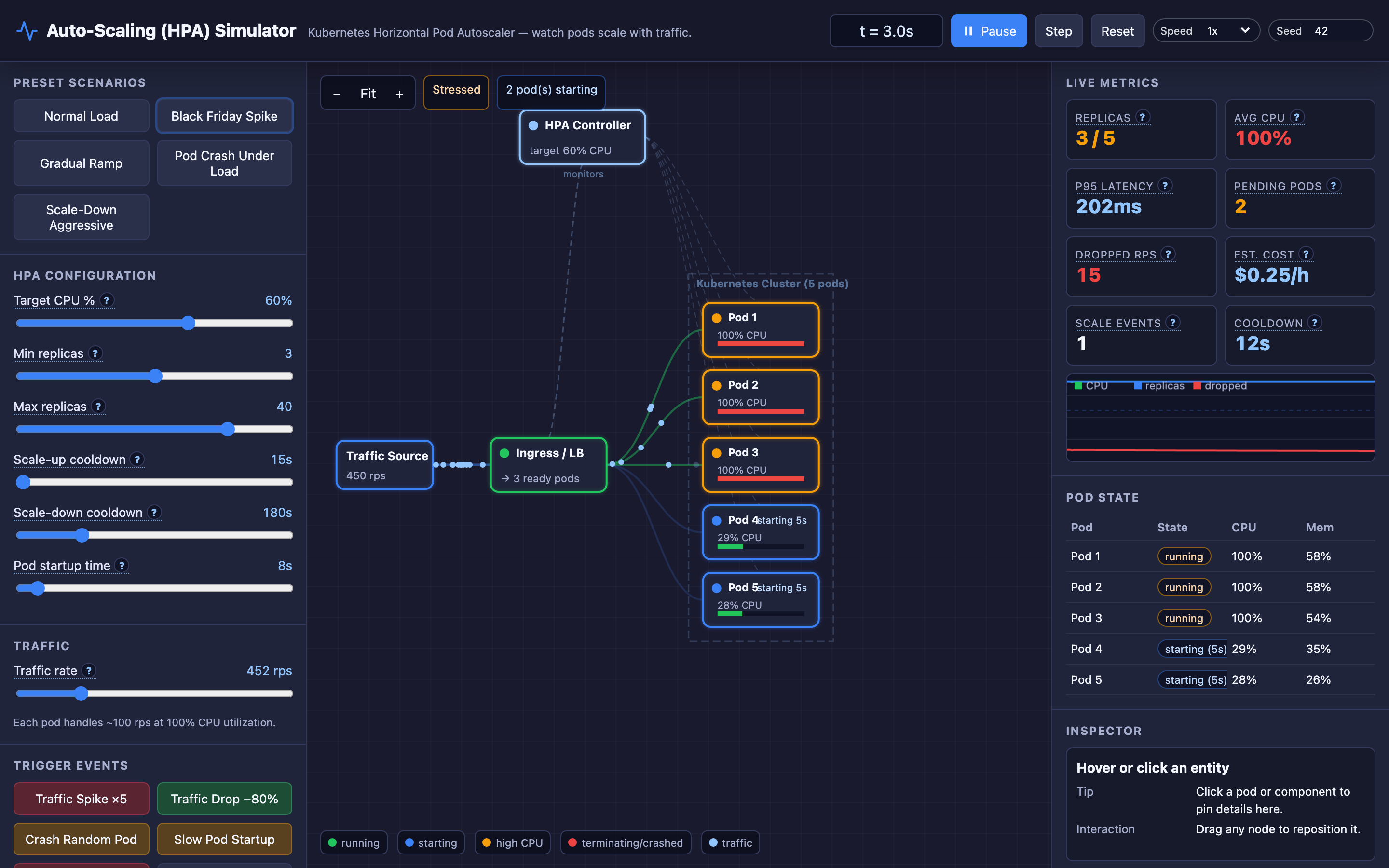
Try it yourself
Reading about HPA formulas and cooldown windows only gets you so far. The real intuition comes from watching pods spin up and down in real time — seeing the gap between desired and actual replicas, watching requests drop during cold starts, and feeling the flapping when cooldowns are too aggressive.
Try the interactive Auto-Scaling demo to experiment with Black Friday traffic spikes, crash recovery, memory leaks, and every HPA knob — all without risking your production cluster.