How Engineering Teams Ship Features Without Breaking Production
Learn how canary and blue-green deployments reduce production risk, catch regressions, handle schema changes, and trigger safe rollbacks.
Why this matters
Your team merges a PR that changes the user authentication flow. You deploy to production using a rolling update — all 12 pods get the new version simultaneously. Within 90 seconds, your error rate jumps from 0.1% to 12%.
The bug only manifests under a specific OAuth provider configuration that exists in production but not in staging. By the time the on-call engineer notices the PagerDuty alert, runs kubectl rollout undo, and waits for the rollback to complete, 45,000 users have seen login failures.
This is the “ship and pray” deployment model. Rolling updates replace all instances, and by the time you detect a problem, every user is affected. The blast radius is 100%.
Canary deployments solve this by shifting traffic gradually — 1% of users see the new version first. If the error rate stays below threshold for a full observation window, traffic advances to 5%, then 25%, then 50%, then 100%. If the error rate spikes at any step, traffic automatically reverts to the stable version. The blast radius of a bad deploy drops from 100% to 1%.
My rule of thumb A canary is only useful if it can see the failure. If traffic is too low, metrics are too noisy, or the database change is already global, you are mostly performing theater.
The mental model
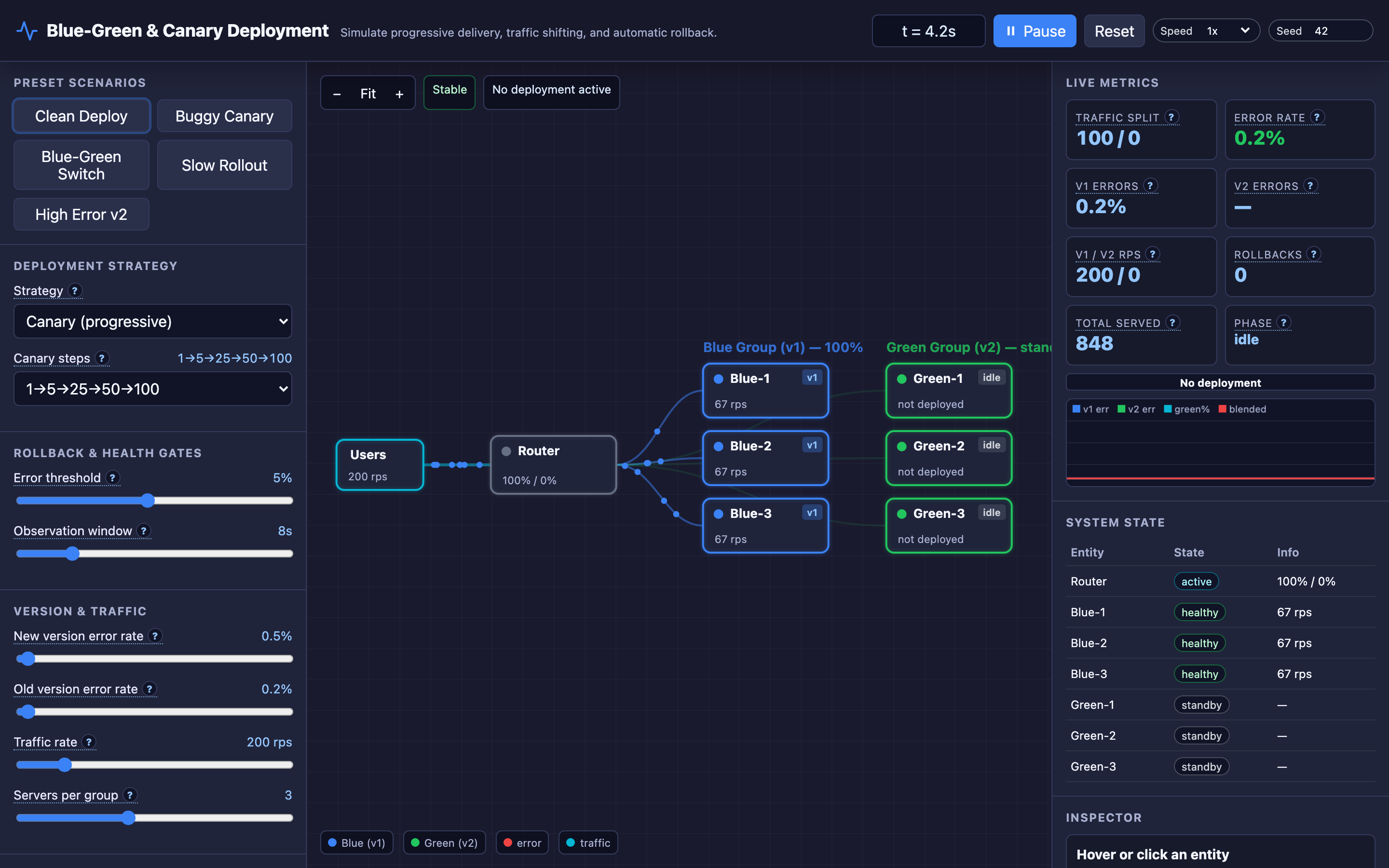
The interactive demo models two deployment strategies with distinct mechanics:
Canary (Progressive Delivery): The Blue Group serves the current stable version (v1) and receives 100% of traffic at rest. When you deploy v2, it’s placed on the Green Group. Traffic shifts through configurable step sizes — for example, 1% → 5% → 25% → 50% → 100%.
At each step, the system monitors the v2 error rate for the full observation window (3–30 seconds). If the error rate stays below the configured threshold (0.5%–10%), the next step begins. If it exceeds the threshold at any point, an automatic rollback fires — all traffic returns to Blue instantly and Green connections drain.
Blue-Green (Instant Switch): Instead of gradual shifting, blue-green waits for v2 to pass a health check on the Green Group, then switches 100% of traffic instantly. This is simpler but riskier — you’re either at 0% or 100%, with no intermediate observation period.
The critical nuance is the health gate: each canary step must hold steady for the entire observation window. A 15-second observation window with a 2% error threshold means the v2 error rate must stay below 2% continuously for 15 seconds. A brief 3% spike at second 12 resets the observation or triggers rollback, depending on configuration.
The interactive demo lets you configure servers per group (1–6), inject custom error rates into v2, crash individual Green servers, and force manual rollbacks or promotions — all while watching real-time traffic split percentages and per-version error rates.
For the focused simulator landing page, use the Canary Deployment Simulator guide. It breaks the controls and scenarios into a shorter hands-on workflow.
Decisions that matter
Canary Step Sizes (1→5→25→50→100, 5→25→50→100, etc.): The progression determines your blast radius at each stage. Starting at 1% means only 1 in 100 users hits the new version initially. More granular steps (more stages) catch bugs earlier but extend total deployment time. A 5-step progression with 15-second observation windows takes at least 75 seconds to fully promote.
Error Threshold (0.5%–10%): The v2 error rate that triggers automatic rollback. At 0.5%, even minor regressions cause rollback — safe but potentially blocking deploys due to normal baseline noise. At 10%, only severe bugs are caught. Production recommendation: set this to 3–5× your baseline error rate. If baseline is 0.3%, use 1.0–1.5% as your threshold.
Observation Window (3–30 seconds): How long each step must remain healthy before advancing. At 3 seconds, you might miss bugs that only manifest under sustained load. At 30 seconds, your deployment takes 2.5+ minutes just for the canary phase. The tradeoff is detection confidence vs. deployment speed. For latency-sensitive bugs, longer windows are critical.
New Version Error Rate (injected): In the interactive demo, you can set v2’s error rate to test rollback behavior. In production, this is whatever bugs exist in your new code. The interactive demo’s “Buggy Canary” preset sets a high error rate to demonstrate automatic rollback triggering during the first canary step.
Servers per Group (1–6): More servers per group means each server handles a smaller traffic share, making per-server failures less impactful but increasing infrastructure cost. With 1 server in Green, a single server crash means 100% v2 failure — instant rollback.
Where it breaks: Schema Mismatch Between Canary and Stable
The failure mode: v2 adds a new required column preferences JSONB NOT NULL to the users table and deploys a migration before the canary begins. Now v1 pods (still serving 95% of traffic) crash on every INSERT INTO users because they don’t include the new required column.
Error rate on the stable version spikes to 100%. The canary health gate only monitors v2 error rate — it sees v2 is fine and keeps advancing. Meanwhile, 95% of your traffic is failing.
What you will notice: Error rate on the Blue (stable) group spikes immediately after migration runs. Application logs show null value in column "preferences" violates not-null constraint.
Grafana dashboards show overall error rate skyrocketing, but the canary dashboard (which only monitors Green) shows green. PagerDuty fires on the global error rate alert, not the canary alert.
Warning Never couple a breaking schema change with a canary deployment. A
NOT NULLcolumn added before v1 code is retired will crash the stable version. Always use the expand/contract migration pattern.
What I would do: Always use backward-compatible migrations — the expand/contract pattern:
-- Step 1: EXPAND - Add column as nullable (backward-compatible)
ALTER TABLE users ADD COLUMN preferences JSONB;

-- Step 2: Deploy v2 (canary) - writes preferences, handles NULL
-- v1 still works because column is nullable

-- Step 3: BACKFILL - populate existing rows
UPDATE users SET preferences = '{}' WHERE preferences IS NULL;

-- Step 4: After v2 is 100% promoted, CONTRACT
ALTER TABLE users ALTER COLUMN preferences SET NOT NULL;
ALTER TABLE users ALTER COLUMN preferences SET DEFAULT '{}';
Monitor error rates on both Blue and Green groups during canary. Configure your service mesh (Istio, Linkerd) to alert on global error rate, not just canary version error rate.
Where it breaks: Sticky Sessions Breaking Traffic Splitting
The failure mode: Your application stores session state in-memory on each pod. Users are routed to the same pod via cookie-based sticky sessions. When the canary shifts 5% of traffic to Green, only new sessions are affected — existing users remain pinned to Blue pods.
Your canary is effectively testing only new visitors, missing bugs that affect returning users with existing session state. Worse, when you promote to 100%, all sticky sessions to Blue pods break, causing a thundering herd of session re-establishment.
What you will notice: Canary metrics show suspiciously low traffic on Green — 5% canary weight but only 1–2% actual traffic reaching Green. Session cookie analysis shows affinity headers pointing to Blue pods for returning users.
After full promotion, session error rate spikes as old Blue cookies route to nonexistent pods. kubectl logs show “session not found” errors across all Green pods simultaneously.
What I would do: Externalize session storage to Redis or a database — pods should be stateless:
# Kubernetes deployment with external session store
containers:
  - name: app
    env:
      - name: SESSION_STORE
        value: "redis://redis-cluster:6379"
      - name: SESSION_COOKIE_NAME
        value: "sid"  # No server affinity cookie
If sticky sessions are unavoidable (WebSocket connections, long-polling), configure your ingress to split at the session level rather than the request level — new sessions get assigned to Blue or Green based on the canary weight, but all requests within a session go to the same group. Istio supports this with consistentHash routing.
Where it breaks: Metric Noise Hiding Real Regressions
The failure mode: Your baseline error rate fluctuates between 0.3% and 0.8% due to transient network issues and third-party API flakiness. You set the canary rollback threshold at 2%. v2 introduces a bug that raises error rate by 0.5% — from 0.5% to 1.0%.
This is a real regression affecting thousands of users, but it never crosses the 2% threshold. The canary promotes to 100%, and now every user experiences the elevated error rate. No rollback ever fires.
What you will notice: Error rate increases after full deployment, but retrospectively. Support tickets increase 30% over the following 24 hours. The canary dashboard shows all green checkmarks — every observation window passed.
A/B comparison between v1 and v2 metrics reveals the regression only when viewed with statistical rigor (p-value < 0.05 over 1,000+ samples).
Hint The interactive demo’s “Metric Noise” preset demonstrates this scenario — try setting a low v2 error rate that stays under threshold but is statistically higher than v1. Watch the canary promote despite the real regression.
What I would do: Implement statistical significance testing instead of simple threshold comparison. Instead of “is v2 error rate < 2%?”, ask “is v2 error rate statistically significantly higher than v1 error rate?”:
from scipy import stats

def should_rollback(v1_errors, v1_total, v2_errors, v2_total):
    """Chi-squared test for error rate comparison"""
    v1_rate = v1_errors / v1_total
    v2_rate = v2_errors / v2_total

    # Only test if we have enough samples
    if v2_total < 1000:
        return False  # Need more data

    contingency = [[v2_errors, v2_total - v2_errors],
                   [v1_errors, v1_total - v1_errors]]
    _, p_value, _, _ = stats.chi2_contingency(contingency)

    # Rollback if v2 is significantly worse (p < 0.05)
    return v2_rate > v1_rate and p_value < 0.05
Tools like Flagger (for Kubernetes) and AWS CloudWatch Evidently support automated statistical analysis during canary deployments.
The tradeoff
| Approach | Pros | Cons |
|---|---|---|
| Canary (1→5→25→50→100%) | Minimal blast radius, gradual confidence | Slower deployment (minutes), infrastructure complexity |
| Blue-Green (instant switch) | Simple, fast cutover, easy rollback | No gradual observation, full blast radius if bug passes health check |
| Short observation window (3s) | Fast deployments, rapid iteration | May miss bugs that manifest under sustained load |
| Long observation window (30s) | High confidence, catches subtle regressions | Deployments take 2.5+ minutes, blocks pipeline |
| Low error threshold (0.5%) | Catches minor regressions early | False positive rollbacks from baseline noise |
| High error threshold (5%) | Tolerant of noise, fewer false rollbacks | Misses moderate regressions affecting real users |
| Statistical significance testing | Catches subtle regressions, adapts to noise | Requires more traffic volume for confidence, complex to implement |
| Service mesh (Istio/Linkerd) | Fine-grained traffic control, mTLS, observability | Operational complexity, sidecar resource overhead (~50MB RAM per pod) |
A practical checklist
Step 1: Verify traffic splitting is working. During a canary, check actual traffic distribution — not just configuration. In Istio: kubectl get virtualservice -o yaml shows weights. In the interactive demo, watch the real-time traffic percentages on Blue vs. Green. If Green receives less traffic than configured, check for sticky sessions or misconfigured routing rules.
Step 2: Monitor both versions independently. Use Prometheus labels to separate v1 and v2 metrics: http_requests_total{version="v2", status="500"}. Compare error rates, p50/p95/p99 latency, and throughput between versions. Don’t just monitor v2 in isolation — watch v1 too for schema-related breakage.
Step 3: Test rollback before you need it. Use the interactive demo’s “Force Rollback” button or inject bugs with the “Inject Bug” trigger to verify that automatic rollback fires correctly and traffic reverts to Blue. In production, practice rollbacks during off-peak hours.
Step 4: Set observation windows based on your traffic volume. You need enough requests during each observation window to detect regressions. At 100 rps with 1% canary, Green receives 1 rps. To detect a 2% error rate increase with 95% confidence, you need ~2,500 requests — which takes 42 minutes at 1 rps. Either increase observation windows or start with a higher canary percentage.
Step 5: Use backward-compatible migrations — always. Make the database schema change backward-compatible first, deploy it, then deploy the application change. Reverse the order for rollbacks. Never couple a breaking schema change with a canary deployment.
Try it yourself
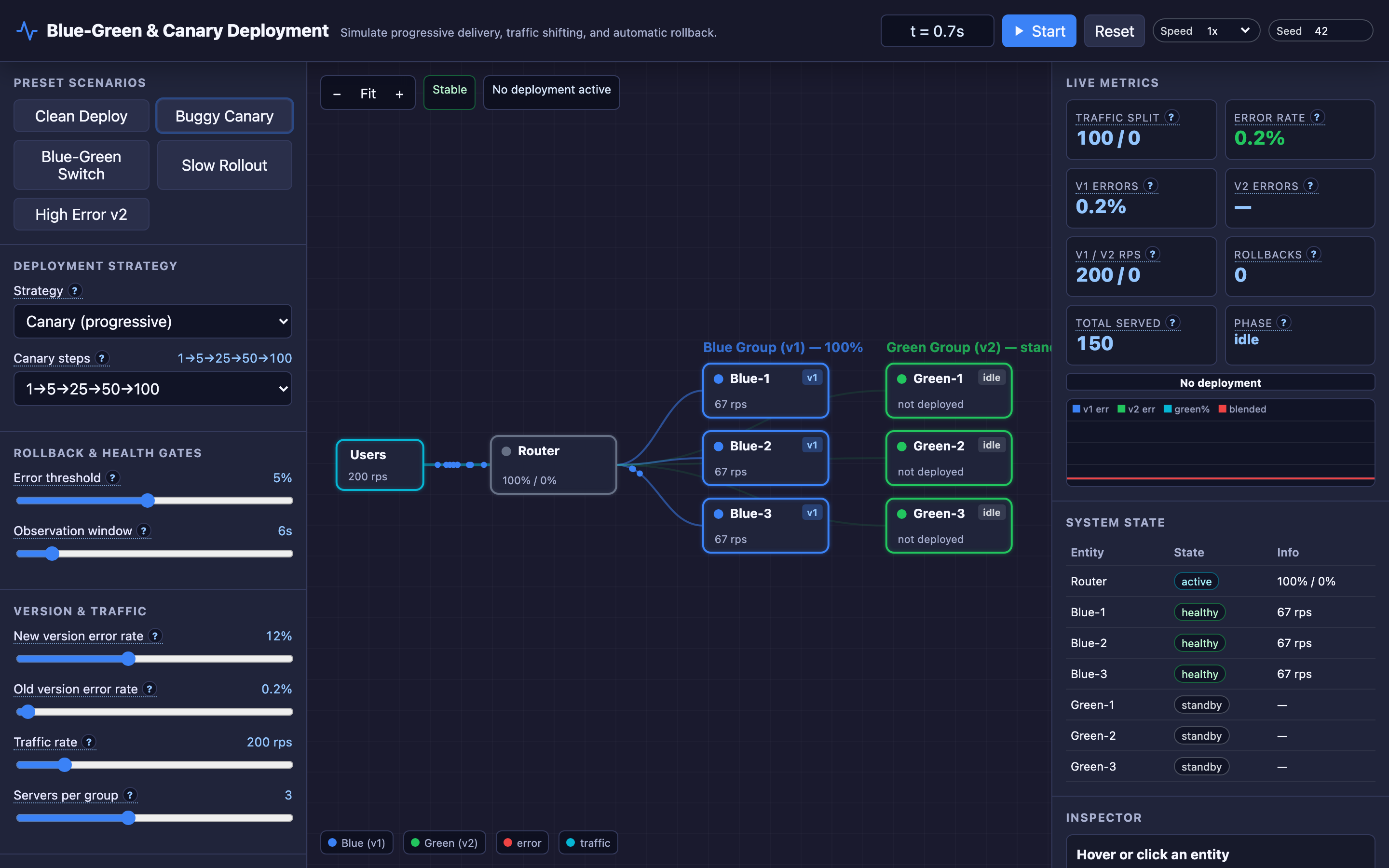
The difference between reading about canary deployments and watching one fail is visceral. Seeing traffic shift to 5%, watching the error rate creep above threshold, and then seeing the automatic rollback snap traffic back to Blue in real time makes the value of progressive delivery immediately obvious.
Try the interactive Canary Deployment demo to deploy buggy versions, trigger automatic rollbacks, crash servers mid-canary, and compare canary vs. blue-green strategies — all without touching your production infrastructure.