What Actually Happens When You Type a URL and Press Enter
Learn how DNS resolution works from browser cache to authoritative nameservers, and why TTLs, resolver outages, and DNSSEC matter.
Why this matters
You type www.example.com into your browser and press Enter. The browser needs an IP address to establish a TCP connection. But you typed a human-readable domain name — somewhere, something must translate “www.example.com” into “93.184.216.34”. This translation involves up to 8 network hops, 4 different server types, multiple caching layers, and a hierarchy that spans the entire internet.
Most developers never think about DNS until it breaks. And when DNS breaks, everything breaks. In 2021, Facebook’s BGP misconfiguration made their authoritative DNS servers unreachable. The result: every service under facebook.com, instagram.com, and whatsapp.com became unresolvable. For 6 hours, 3.5 billion users couldn’t access any Facebook property.
The engineers couldn’t even access internal tools to fix the problem because those tools also depended on DNS.
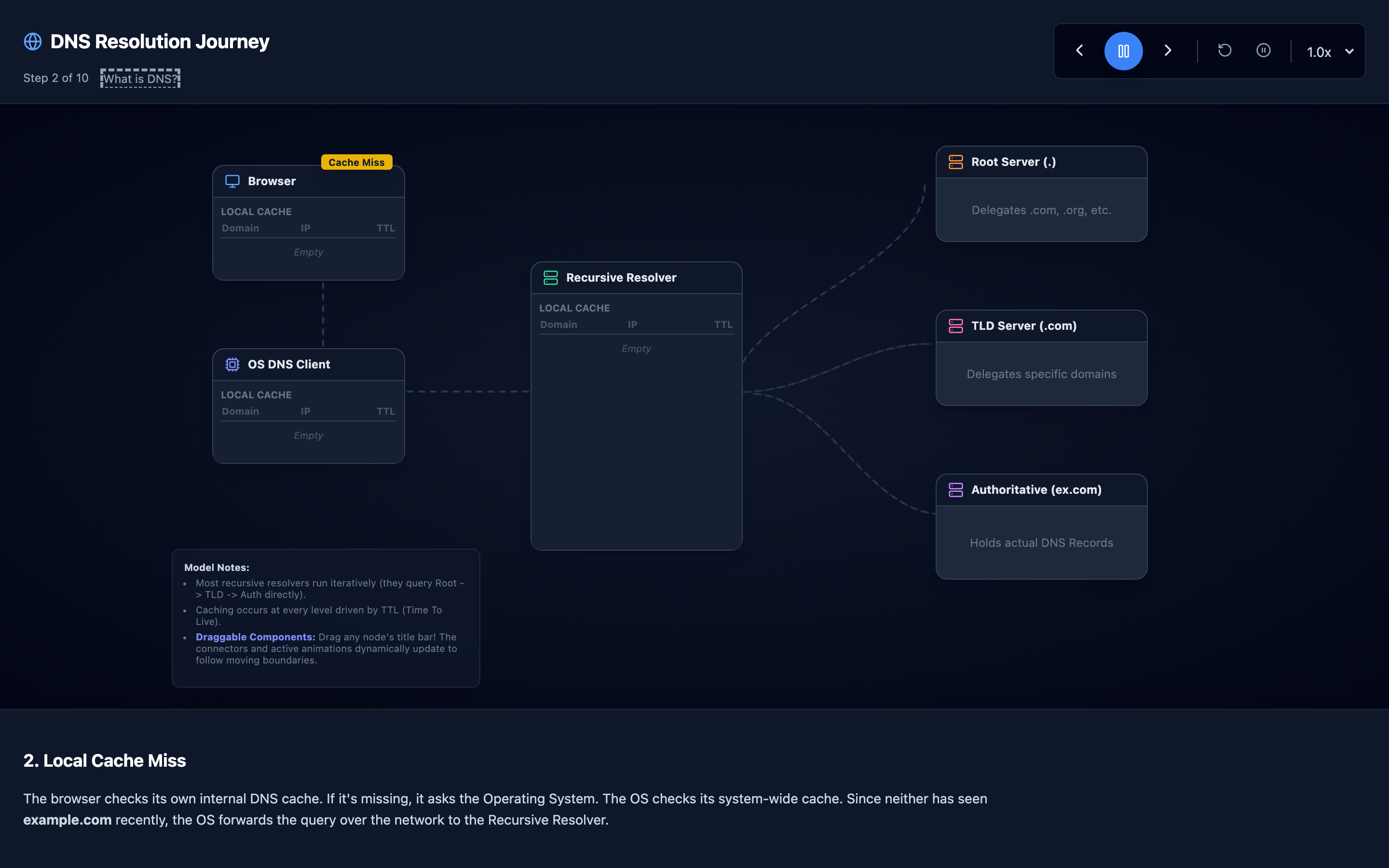
DNS is the single most critical piece of internet infrastructure that most engineers understand the least. It’s also deceptively complex: caching at every layer means a configuration change can take hours to propagate, stale records can serve the wrong IP address for days, and a misconfigured TTL can either overwhelm your nameservers or leave users stranded on dead IP addresses. The TechViz visualization walks you through all 10 steps of a complete DNS resolution — from browser cache check to authoritative nameserver response — showing where queries travel and where caching happens.
Practical note DNS feels static until you need it to change quickly. TTLs, resolver behavior, and cached answers are part of your recovery plan whether you planned for them or not.
The mental model
DNS resolution follows a hierarchical delegation pattern. When you type a domain, the resolution proceeds through up to six layers, each checked in order:
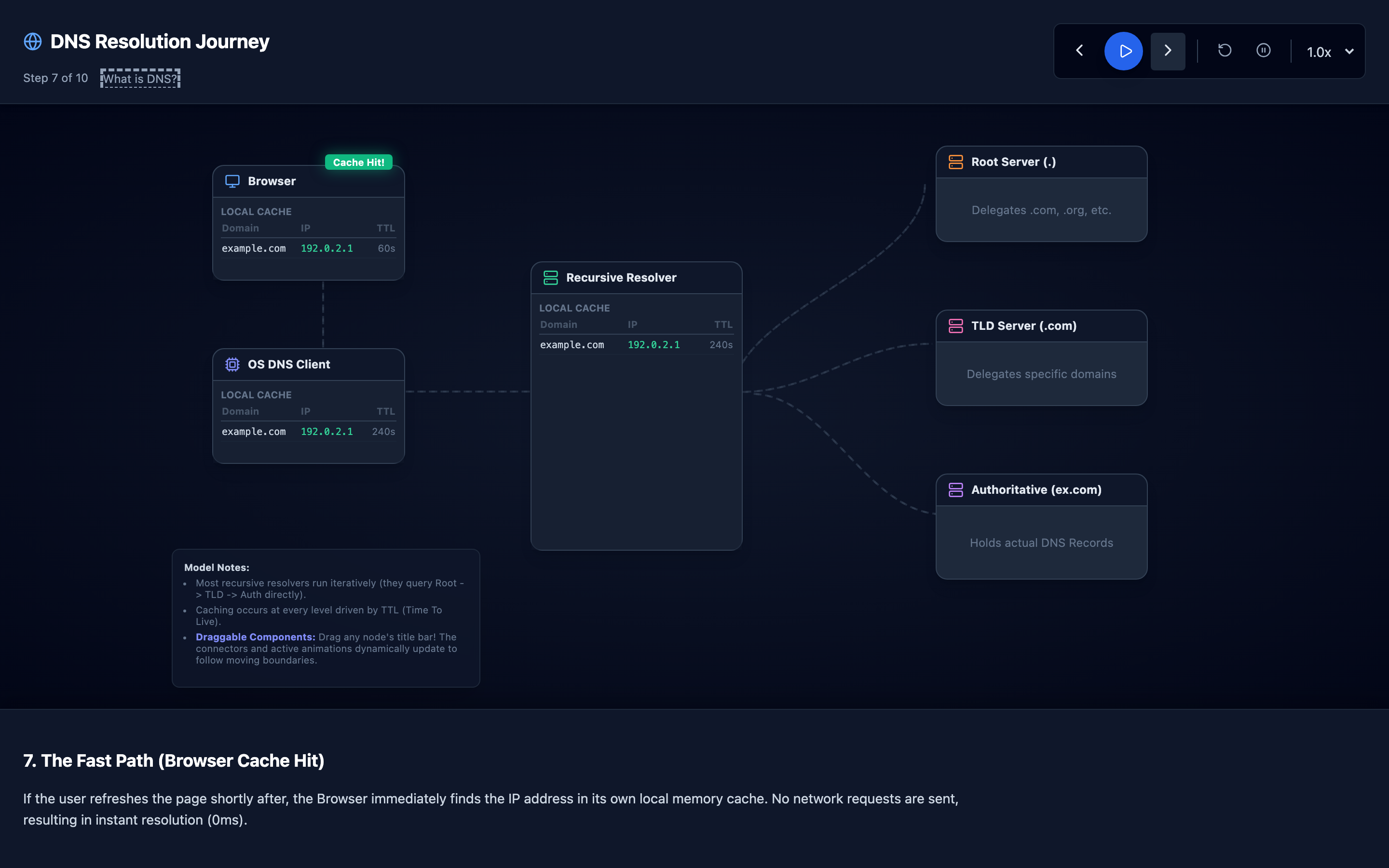
1. Browser Cache. The browser maintains its own DNS cache. Chrome caches records for up to 60 seconds by default. If www.example.com was resolved in the last 60 seconds, the cached IP is used immediately — zero network overhead.
2. Operating System Cache. If the browser cache misses, the OS resolver is queried. On macOS, dscacheutil manages the system DNS cache. On Linux, systemd-resolved caches records according to their TTL. This is still local — no network request yet.
3. Recursive Resolver. On a cache miss from the OS, the query goes to a recursive resolver — typically your ISP’s DNS server or a public resolver like Google’s 8.8.8.8 or Cloudflare’s 1.1.1.1. The recursive resolver does the heavy lifting: it iteratively queries the DNS hierarchy on your behalf.
4. Root Server. The recursive resolver asks one of the 13 root server clusters: “Where can I find information about .com domains?” The root server responds with the addresses of the .com TLD (Top-Level Domain) servers. There are 13 root server addresses (A through M), replicated across 1,700+ instances worldwide via anycast.
5. TLD Server. The resolver asks the .com TLD server: “Where can I find example.com?” The TLD server responds with the addresses of example.com’s authoritative nameservers (e.g., ns1.example.com at 93.184.216.1).
6. Authoritative Nameserver. The resolver asks the authoritative nameserver: “What is the A record for www.example.com?” The authoritative server responds with the IP address: 93.184.216.34, along with a TTL (Time To Live) — say, 3600 seconds (1 hour). This response is cached at every level (recursive resolver, OS, browser) for the duration of the TTL.
The entire chain, when fully uncached, takes 50–200ms. On subsequent queries within the TTL window, it resolves in under 1ms from cache.
Decisions that matter
TTL (Time To Live)
The most consequential DNS configuration parameter. TTL specifies how long (in seconds) a DNS record can be cached before it must be re-queried.
A high TTL (86400 seconds = 24 hours) means changes to your DNS records take up to 24 hours to propagate — but reduces query volume to your authoritative servers by 99%. A low TTL (60 seconds) means changes propagate within a minute, but your authoritative servers handle 1,440× more queries per day.
# Check TTL for a domain
dig www.example.com +noall +answer
# www.example.com.  3600  IN  A  93.184.216.34
#                   ^^^^
#                   TTL in seconds (1 hour)
DNS Record Type
The type of record being queried changes the resolution behavior:
- A Record: Maps a domain to an IPv4 address (
93.184.216.34) - AAAA Record: Maps to an IPv6 address (
2606:2800:220:1:248:1893:25c8:1946) - CNAME Record: Creates an alias that triggers a second resolution (
www.example.com → example.com → 93.184.216.34) - MX Record: Mail server routing (
example.com → mail.example.com) - TXT Record: Arbitrary text, used for email validation (SPF, DKIM) and domain verification
- NS Record: Delegates a domain to specific authoritative nameservers
Recursive Resolver Selection
The choice of recursive resolver affects performance, privacy, and reliability. ISP resolvers are geographically close (low latency) but may censor or redirect. Public resolvers like 1.1.1.1 (Cloudflare) offer better privacy and often faster resolution.
The TechViz visualization shows the query path from your browser through the resolver to the root, TLD, and authoritative servers.
Cache Levels
Each layer in the DNS hierarchy can cache responses. The browser, OS, recursive resolver, and even intermediate nameservers all maintain caches.
This multi-level caching means a TTL of 3600 seconds doesn’t mean a change propagates in exactly 3600 seconds — it means each cache expires its copy independently, so propagation is staggered.
Where it breaks: Stale DNS Cache After IP Migration
The failure mode: Your company migrates from AWS (IP 54.23.191.44) to GCP (IP 35.201.97.12). The operations team updates the A record to point to the new GCP IP. But the old TTL was set to 86400 seconds (24 hours).
Recursive resolvers worldwide have cached the old IP. For the next 24 hours, some users hit the old AWS server (which is being decommissioned), while others hit the new GCP server. After 12 hours, the AWS infrastructure is torn down. Users still pointing to the old IP get connection refused errors. Customer support tickets spike. Revenue drops 15% for the day.
What you will notice:
- Some users can access the site normally, others cannot — the split is geographic and ISP-dependent
dig @8.8.8.8 www.example.comreturns the new IP, butdig @ns1.isp.net www.example.comreturns the old IP- Error logs show connection timeouts to the old IP address that should no longer be in use
- CDN analytics show traffic split between two IP addresses with the old IP’s share declining gradually
- User reports are inconsistent: “It works for me” vs. “The site is completely down”
Warning Never tear down old infrastructure until the previous TTL has fully expired everywhere. If your TTL was 86400 seconds, wait at least 48 hours after changing the record before decommissioning the old IP.
What I would do: Before the migration, lower the TTL to 60 seconds at least 48 hours in advance (to let the old high TTL expire everywhere). Perform the IP change. Wait 24 hours and verify with global DNS checking tools (dnschecker.org).
Then raise the TTL back to 3600–86400 seconds. During migration, keep the old IP active and serving requests (or at minimum, serving redirects to the new IP) until the low-TTL propagation window has passed.
# Step 1: Lower TTL 48 hours before migration
# In your DNS provider, change TTL from 86400 to 60

# Step 2: Verify TTL has propagated
dig www.example.com +noall +answer
# Should show TTL close to 60

# Step 3: Change the A record to new IP
# Step 4: Verify propagation globally
for resolver in 8.8.8.8 1.1.1.1 208.67.222.222; do
    echo "=== $resolver ==="
    dig @$resolver www.example.com +short
done
Where it breaks: Recursive Resolver Outage
The failure mode: Your application servers are configured to use the corporate DNS resolver at 10.0.0.53. The resolver runs on a single VM with 4GB of RAM.
During a Monday morning traffic spike, the resolver handles 50,000 queries per second — 3× its normal capacity. Its cache fills up, evictions increase, and resolution latency jumps from 5ms to 800ms. At 800ms per DNS query, every outbound HTTP connection from your application takes nearly a second just to resolve the hostname.
API response times spike from 200ms to 1,200ms. At peak, the resolver’s process OOMs and crashes. Now all DNS resolution fails entirely — your application can’t resolve any hostnames, including database servers, external APIs, and internal services. Every outbound request fails with UnknownHostException.
What you will notice:
- All outbound HTTP requests fail simultaneously, regardless of destination
- Application logs:
java.net.UnknownHostException: api.stripe.comfor domains that were working minutes ago - Internal DNS query latency (visible if your DNS resolver exports metrics) spikes from
5msto800msthen flatlines at timeout nslookup google.com 10.0.0.53from a server in the same network times out- The resolver VM shows OOM in system logs:
Out of memory: Killed process 1234 (named)
What I would do: Never depend on a single recursive resolver. Configure at least two resolvers in /etc/resolv.conf — one primary (corporate) and one fallback (public, e.g., 1.1.1.1).
Better yet, run a local caching resolver (like unbound or dnsmasq) on each application server that forwards to multiple upstream resolvers with health checking. For Kubernetes environments, CoreDNS is deployed as a multi-replica Deployment by default — ensure it’s scaled to handle peak query volume with at least 3 replicas.
# Kubernetes CoreDNS scaling
apiVersion: apps/v1
kind: Deployment
metadata:
  name: coredns
  namespace: kube-system
spec:
  replicas: 5  # Scale for peak query volume
  template:
    spec:
      containers:
        - name: coredns
          resources:
            requests:
              cpu: "500m"
              memory: "256Mi"
Where it breaks: DNS Amplification Attack
The failure mode: An attacker sends DNS queries to thousands of open recursive resolvers worldwide, spoofing the source IP address to be your server’s IP (93.184.216.34). Each query is a small request (~60 bytes) for a DNS record type that produces a large response (~3,000 bytes) — a 50× amplification factor.
The resolvers dutifully send their large responses to your server. Your server receives 2Gbps of unsolicited DNS response traffic. The network link saturates, legitimate traffic is dropped, and your application becomes unreachable. Your hosting provider may even null-route your IP to protect their network.
What you will notice:
- Inbound network traffic spikes to multi-Gbps, far exceeding normal application traffic
tcpdump port 53shows thousands of DNS responses per second from IP addresses you never queried- The traffic is all UDP port 53, coming from diverse source IPs (the open resolvers) worldwide
- Your application’s network interface drops packets:
ifconfig eth0showsRX droppedincreasing rapidly - Upstream provider alerts: “DDoS detected on IP 93.184.216.34, traffic exceeds contracted bandwidth”
What I would do: Implement DNSSEC validation to prevent response spoofing at the resolver level. Deploy Response Rate Limiting (RRL) on your authoritative nameservers to cap responses per source IP.
Use a cloud-based DNS provider (Cloudflare, AWS Route 53) that absorbs attack traffic across their anycast network. At the network level, enable BCP38/source address validation to prevent spoofed packets from leaving your network, and use your hosting provider’s DDoS mitigation service.
# BIND9: Enable Response Rate Limiting
options {
    rate-limit {
        responses-per-second 10;
        window 5;
        slip 2;
    };
};

# Verify DNSSEC for a domain
dig +dnssec example.com | grep -E "RRSIG|AD"
# The 'ad' (Authentic Data) flag indicates DNSSEC validation passed
Hint Use
dig +traceto walk the full DNS resolution chain from root to authoritative server. This is the single most useful command for debugging DNS issues and understanding the delegation hierarchy.
The tradeoff
| Approach | Pros | Cons |
|---|---|---|
| High TTL (3600–86400s) | Fewer queries to authoritative servers, faster resolution from cache | Slow propagation of DNS changes, stale records during migrations |
| Low TTL (30–60s) | Fast failover, quick propagation of changes | 60–1400× more queries to authoritative servers, higher resolution latency on cache miss |
| Single DNS provider | Simple management, single interface | Single point of failure, no redundancy if provider has outage |
| Multi-provider DNS (e.g., Route 53 + Cloudflare) | Redundancy against provider outage, geographic diversity | Complex configuration, record sync challenges, higher cost |
| ISP recursive resolver | Low latency (geographically close), no configuration needed | May censor or redirect, single point of failure, privacy concerns |
Public resolver (1.1.1.1, 8.8.8.8) | Fast, reliable, privacy-focused, global anycast | Slightly higher latency for some regions, dependency on third party |
Local caching resolver (unbound) | Lowest latency, resilient to upstream resolver issues | Additional infrastructure to manage, cold cache on restart |
A practical checklist
Step 1: Diagnose the resolution chain. Trace the full DNS resolution path to identify where the failure occurs:
# Full resolution trace
dig +trace www.example.com

# Check specific resolver
dig @8.8.8.8 www.example.com

# Check authoritative directly
dig @ns1.example.com www.example.com
Step 2: Check TTL values. Understand current caching behavior:
# Query twice — second query shows remaining TTL
dig www.example.com +noall +answer
# Wait 10 seconds
dig www.example.com +noall +answer
# The TTL will have decreased by 10
Step 3: Flush DNS caches during debugging. Clear local caches to test fresh resolution:
# macOS
sudo dscacheutil -flushcache; sudo killall -HUP mDNSResponder

# Linux (systemd-resolved)
sudo systemd-resolve --flush-caches

# Chrome browser
chrome://net-internals/#dns → Clear host cache
Step 4: Verify global propagation. After making DNS changes, check resolution from multiple geographic locations and resolvers using dnschecker.org or:
for resolver in 8.8.8.8 1.1.1.1 208.67.222.222 9.9.9.9; do
    echo "Resolver $resolver: $(dig @$resolver +short www.example.com)"
done
Step 5: Monitor authoritative server health. Set up synthetic DNS monitoring that queries your authoritative nameservers every 30 seconds from multiple regions:
# Alert if DNS resolution latency exceeds 500ms
probe_dns_lookup_time_seconds{instance="www.example.com"} > 0.5
Step 6: Use the TechViz DNS visualization. Step through all 10 stages of DNS resolution to build intuition for where queries travel, where caching happens, and where failures can occur.
Try it yourself
DNS resolution is a chain of delegation that’s hard to visualize from documentation alone. The TechViz visualization walks you through each step — watch the blue query arrows travel from browser to root server and the green response arrows carry records back through the hierarchy, with TTL countdown timers showing cache expiration at every level.
Try the interactive DNS Resolution visualization → Step through the 10 stages following a query from your browser to the authoritative nameserver and back, then observe what happens on a repeat query when caches are warm.